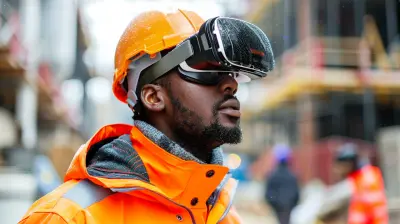
Top Mobile Office Setups for Remote Professionals in the Near Future
6 August 2026
Remote work has moved past the temporary phase. It is now a permanent fixture for millions of professionals across the globe. But the way we work away from a fixed desk is changing fast. The old image of a laptop on a kitchen table is giving way to something more intentional, more modular, and far more capable. The next few years will bring a wave of tools and techniques that make mobile offices not just possible, but genuinely pleasant.
This guide is for the people who work from coffee shops, co-working spaces, trains, hotel rooms, and even the occasional park bench. It is about building a system that is lightweight, reliable, and adaptable. Not a desk you drag around, but a kit that disappears into a bag and reappears as a full workstation in under two minutes.
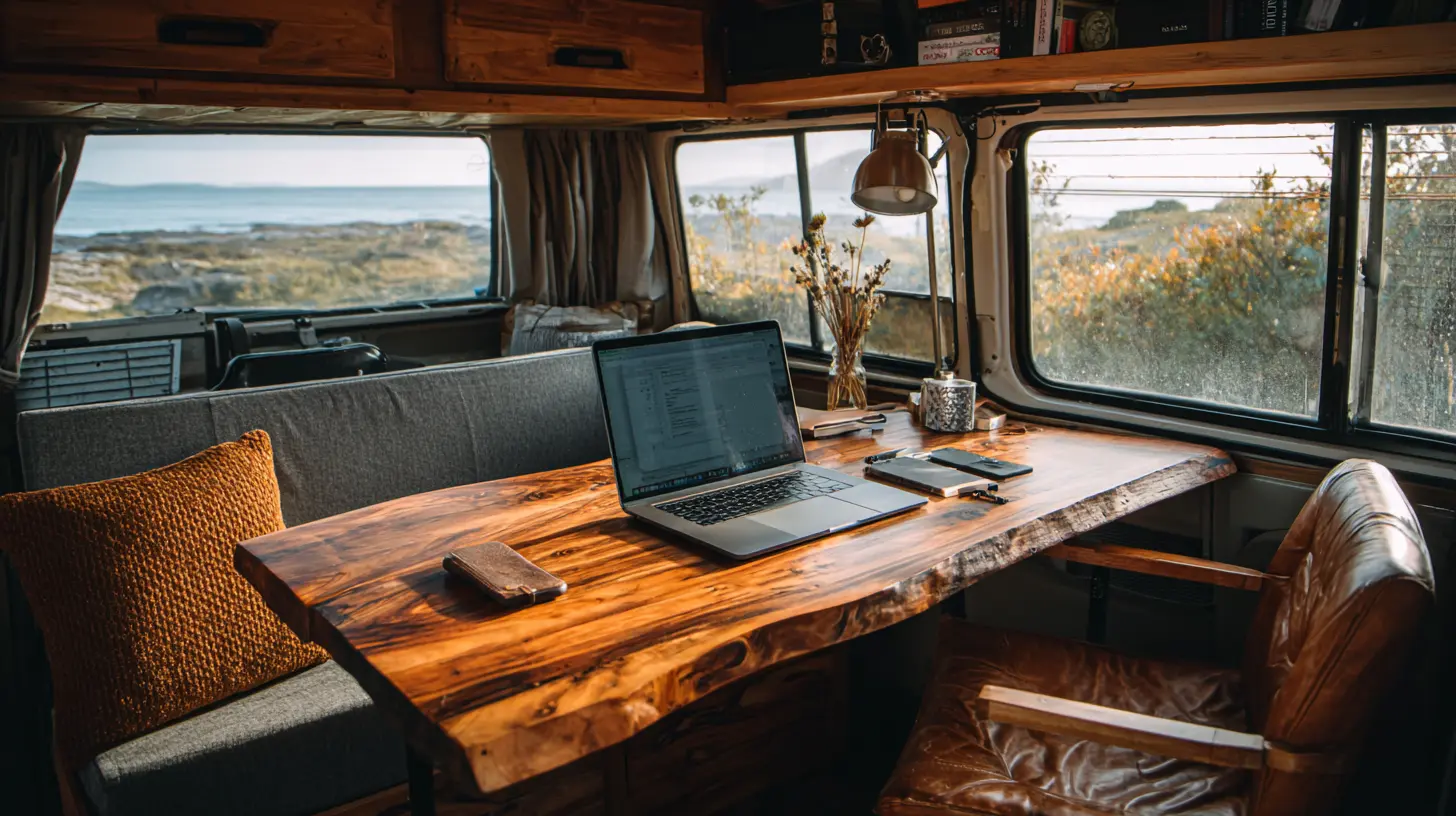
Rethinking the Core: The Laptop Is Not the Office
Most people start with the laptop and then try to add everything else around it. That is backwards. The laptop is just the engine. The office is the entire ecosystem that surrounds it: the screen, the input devices, the audio, the power, the connectivity, and the physical comfort. In the near future, the best mobile setups treat the laptop as one component in a modular system.The biggest shift is the rise of the secondary display. A single laptop screen, even a large 16-inch one, forces you into a cramped workflow. You constantly alt-tab between documents, squint at spreadsheets, and lose context. The fix is a portable monitor. But not just any portable monitor. The next generation will be lighter, brighter, and powered over a single USB-C cable. Look for panels around 15 to 17 inches with thin bezels and a matte finish to reduce glare. A 4K resolution is nice, but for most text-based work, 1440p is the sweet spot because it saves battery and runs cooler.
The real expert move is to use the portable monitor as your primary screen and the laptop display as the secondary one. This flips the usual arrangement. You place the portable monitor at eye level using a small stand, and you keep the laptop slightly lower and off to the side. This setup gives you a large, centered canvas for your main work, while the laptop screen handles chat apps, email, or reference material. It feels odd for the first hour, then it becomes natural.
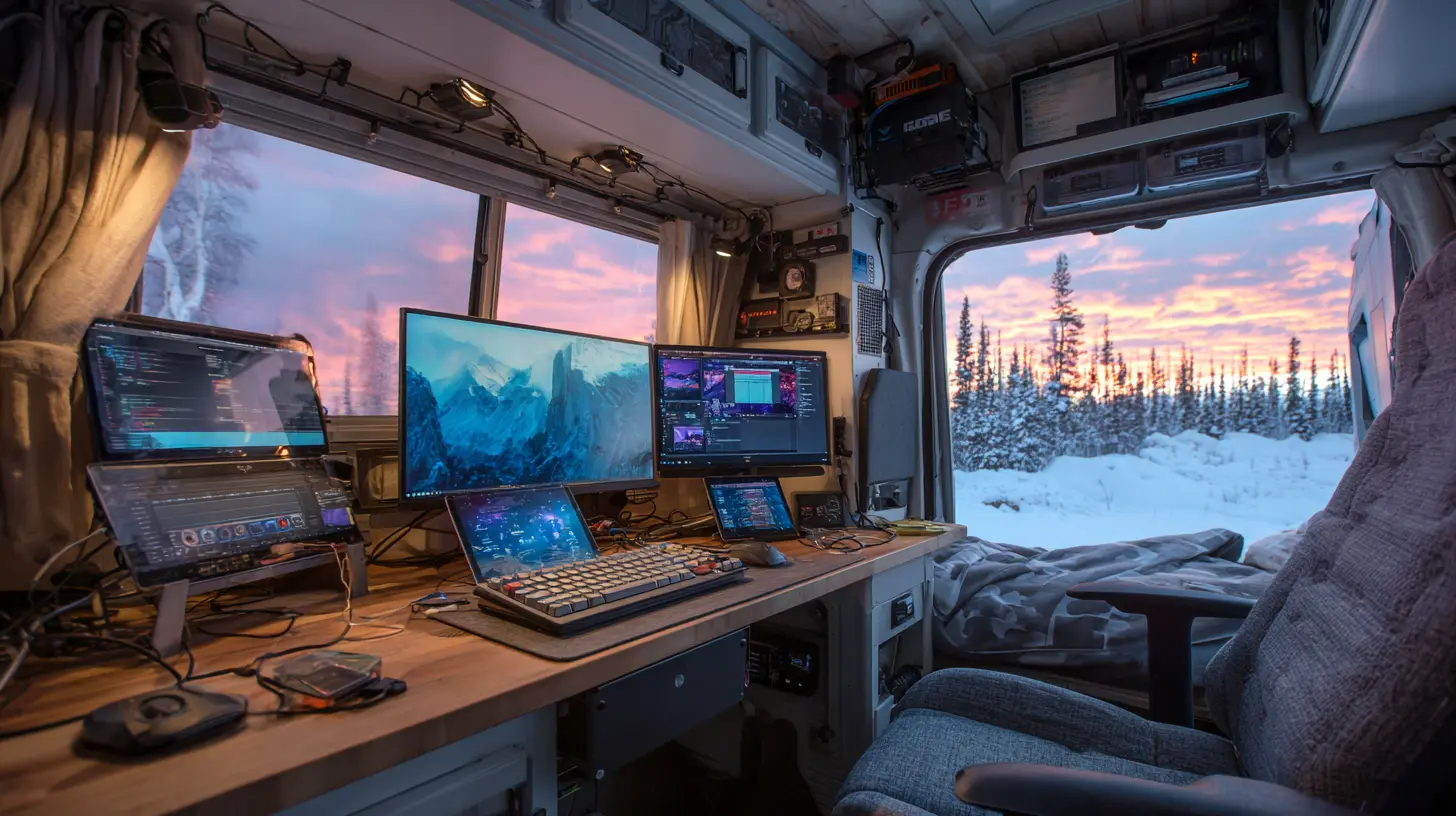
The Critical Role of a Docking Strategy
A common mistake is to carry a full-size docking station in your bag. Those heavy plastic slabs with multiple ports are relics. The near future belongs to the USB-C hub that is no bigger than a pack of gum. These tiny hubs give you HDMI, a couple of USB-A ports, an SD card slot, and pass-through charging. They cost very little, weigh almost nothing, and solve the single-port problem that plagues thin laptops.But there is a better way. Instead of relying on a hub, choose a laptop with enough native ports. The MacBook Air and many Windows ultrabooks now come with two or three Thunderbolt ports. That is plenty. You connect the portable monitor to one port, and you use a small USB-C to USB-A adapter for a mouse dongle or a flash drive. No hub needed. This reduces points of failure and keeps your bag clutter-free.
If you do need a hub, buy one with a captive cable. The ones with a short, permanently attached cable are far more durable than the ones where you have to carry a separate cable. A captive cable also means you cannot forget it at home. This is a small detail that saves you from a very frustrating day.
Power Management Beyond the Wall Outlet
The biggest anxiety for any remote professional is the battery. In the near future, battery technology will improve, but you should not wait for that. You need a power strategy that works today.First, always carry a high-capacity power bank that supports USB-C Power Delivery at 65 watts or higher. This is not for charging your phone. It is for giving your laptop a full charge when you are stuck at a table with no outlets. Many remote workers make the mistake of buying a power bank that is too weak. It will charge a phone, but it will only slow down the drain on a laptop. You want one that can actually push enough wattage to run the machine at full speed while charging.
Second, invest in a GaN charger. These are smaller and lighter than traditional chargers, and they can output multiple voltages. A good 100-watt GaN charger can power your laptop, your portable monitor, and your phone at the same time. It replaces three separate chargers with one brick. This is the single most effective weight-saving upgrade you can make.
Third, be smart about power-hungry apps. A portable monitor, especially a 4K one, draws a lot of power. If you are on battery, consider lowering the monitor's brightness or switching to a lower resolution. Also, close background browser tabs that are running heavy scripts. This is not about being paranoid. It is about extending your work session from three hours to five hours without hunting for an outlet.

Connectivity That Does Not Fail
A mobile office is only as good as its internet connection. In the near future, the standard will be a dual-path setup. This means you have two independent ways to get online, and you can switch between them without thinking.Your phone's hotspot is the first path. It is reliable, but it burns battery and can be slow if you are in a congested area. The second path is a dedicated mobile hotspot device. These are small, pocket-sized routers that run on cellular data. They are better than a phone hotspot because they have stronger antennas, they can connect to a laptop and a monitor at the same time, and they do not drain your phone.
The expert approach is to use a hotspot device with a data-only SIM card. This keeps your work traffic separate from your personal phone traffic. It also gives you a backup if your phone dies. Some newer laptops have built-in cellular modems. If you can choose that option when buying a laptop, do it. It is the most seamless solution because there is nothing to set up. You just turn it on and you are online.
But hardware is only half of it. You need a software strategy for bad connections. Use a VPN only when you are on untrusted public Wi-Fi. For hotel networks, consider using a travel router that you plug into the Ethernet jack. This gives you a private network inside the hotel's network, and it protects you from other guests on the same Wi-Fi. This is a common practice among security-conscious remote workers, and it is worth the small extra weight.
Audio and Video: The Silent Dealbreakers
You can have the fastest laptop and the clearest monitor, but if your audio is bad, you are not professional. The built-in microphones and speakers on laptops are still mediocre. The near future will see more laptops with better mics, but you should not rely on that.For video calls, the most important piece is the microphone. A good USB microphone is fine, but it takes up desk space and adds a cable. A better option is a high-quality headset with a boom microphone. The boom positions the mic close to your mouth, which captures your voice clearly and rejects background noise. Do not buy the cheapest headset. Look for one with active noise cancellation on the microphone, not just on the speakers.
For speakers, skip the laptop's built-in sound. A small Bluetooth speaker that you place behind your laptop can make a huge difference in how you hear others. It does not need to be loud. It needs to be clear. Many newer portable monitors have built-in speakers, but they are usually weak. A dedicated speaker, even a tiny one, is better.
The camera is the other side of this. Most laptop webcams are still positioned below your eye line, which gives you an unflattering up-angle. The fix is a small external webcam that you clip to the top of your portable monitor. This puts the camera at eye level, which makes you look more confident and engaged. Some of the best ones support 1080p or even 4K and have a physical privacy shutter. This is a simple upgrade that changes how clients and colleagues perceive you.
Ergonomics in a Backpack
The most overlooked part of a mobile office is physical comfort. Working hunched over a laptop for eight hours will wreck your neck and shoulders. The near future will bring more foldable stands and compact keyboards, but you need to know what to look for.A laptop stand is non-negotiable. You need to raise the screen so the top of the display is at or slightly below your eye level. This forces you to sit up straight. There are many portable stands that fold flat and weigh less than a pound. The best ones have adjustable height and angle. Do not buy a stand that only has one fixed position. Your posture needs vary depending on the chair and table you are using.
Once the laptop is raised, you cannot type on the built-in keyboard comfortably. You need an external keyboard. The ideal mobile keyboard is low-profile, quiet, and wireless. Mechanical keyboards are great for a desk, but they are heavy and noisy for a coffee shop. Look for a scissor-switch keyboard with a compact layout. Some of the best ones are split into two halves, which allows you to position your arms at shoulder width. This is a game-changer for people with shoulder or wrist pain.
You also need a mouse. The trackpad on a laptop is fine for short bursts, but for precision work, a mouse is faster. Choose a wireless mouse that is small enough to fit in a pocket but large enough to grip comfortably. The best ones use Bluetooth and can connect to multiple devices. This is useful when you switch between your laptop and your phone.
The Bag: The Foundation of Everything
You can have the best gear in the world, but if your bag is a mess, your mobile office is a mess. The near future will see more bags designed specifically for tech professionals. Look for a backpack with a dedicated laptop compartment that is padded on all sides, not just the bottom. The compartment should be against your back, not the front panel. This distributes the weight and protects the laptop from drops.Organizers matter more than capacity. A bag with too many pockets is as bad as a bag with too few. You want a few large compartments and a few small ones. The small ones are for cables, chargers, and adapters. The large ones are for the laptop, monitor, keyboard, and mouse. A good rule is that everything should have a home, and you should be able to reach any item without unpacking everything else.
Avoid bags with a lot of Velcro. It is loud and it wears out. Use zippers with durable pulls. Also, consider a bag with a luggage pass-through sleeve. This is a strap on the back that lets you slide the backpack over the handle of a rolling suitcase. This is essential if you travel frequently.
The Software Layer
Hardware is only half of a mobile office. The software you use determines how smoothly everything works together. The near future will bring more cloud-native apps, but you need to be smart about what you install.First, use a cloud storage service that syncs in real time. Dropbox, Google Drive, and OneDrive all work well. The key is to set up selective sync. You do not want your entire hard drive mirrored on your laptop. You want only the folders you are actively working on. This saves space and reduces sync conflicts.
Second, use a password manager. This is not optional. When you are on the go, you will log into dozens of accounts from different networks. A password manager keeps your credentials secure and auto-fills them. This is faster and safer than typing passwords manually.
Third, use a note-taking app that works offline. Many remote workers rely on cloud-based notes, but if you lose connectivity, you lose access. Choose an app that stores a local copy and syncs when you reconnect. This ensures you can always jot down an idea or review your to-do list.
Fourth, consider a remote desktop app. This lets you connect to your home or office computer from your laptop. It is useful when you need a file that is not on your local machine or when you need to run a heavy application that your laptop cannot handle. Microsoft Remote Desktop and Chrome Remote Desktop are both solid choices.
The Reality of Co-Working and Cafes
A mobile office is not just about gear. It is about knowing how to work in different environments. Many remote professionals make the mistake of assuming that any table with Wi-Fi is a good workspace. That is false.Coffee shops are noisy and have unreliable power. Co-working spaces are better, but they are not all equal. Before you commit to a place, test it. Sit down for fifteen minutes. Check the Wi-Fi speed, the number of available outlets, the noise level, and the seating comfort. If you are going to be there for four hours, the chair matters.
The near future will see more hybrid spaces that are designed for remote workers. These are not just coffee shops with a few tables. They have dedicated quiet zones, bookable meeting rooms, and high-speed fiber connections. They are worth the membership fee if you work away from home more than two days a week.
Common Mistakes and How to Avoid Them
There are several recurring mistakes that even experienced remote professionals make. The first is carrying too much gear. You do not need a full-size keyboard, a mouse, a trackpad, a drawing tablet, and a webcam. You need the minimum that allows you to do your best work. Start with less and add only when you find a genuine need.The second mistake is ignoring the cable problem. You will have at least five cables in your bag: laptop charger, monitor cable, phone cable, headset cable, and a spare. If you do not organize them, they will tangle and break. Use a small cable organizer or a simple zippered pouch. Label each cable with a piece of tape. This takes ten minutes and saves you hours of frustration.
The third mistake is not testing your setup before you travel. Do not wait until you are in a hotel room to discover that your monitor cable is incompatible with your laptop. Set up your entire mobile office at home, use it for a day, and then pack it. This will expose any issues while you still have time to fix them.
The fourth mistake is over-relying on a single device. If your laptop dies, you are dead in the water. Consider keeping a backup phone or a tablet with a keyboard case. It is not ideal for heavy work, but it can handle email, messaging, and light document editing. This is your emergency kit. It will save you on the day your laptop decides to update itself during a client call.
The Future Is Modular and Personal
The near future of mobile offices is not about one perfect device. It is about a system of components that you can mix and match depending on the day. Some days you need a full dual-screen setup. Other days you just need a laptop and a good pair of headphones. The best mobile office is the one that adapts to you, not the other way around.Start with the essentials: a lightweight laptop, a portable monitor, a compact keyboard, a precise mouse, a good headset, a GaN charger, and a power bank. Add a travel router and a mobile hotspot if you work in unpredictable locations. Choose a bag that fits everything without bulging. Then, most importantly, spend time using your setup in different places. Learn what works and what does not. Adjust as you go.
The technology will keep improving, but the principles will stay the same. Keep it light. Keep it reliable. Keep it comfortable. And always have a backup plan. That is what separates a true remote professional from someone who just works on a laptop in a cafe.
Your mobile office is not a place. It is a capability. Build it well, and you can work from anywhere with confidence and ease.
all images in this post were generated using AI tools
Category:
Digital Nomad TechAuthor:

Ugo Coleman
Discussion
rate this article
1 comments
Bria McDermott
This article offers a thoughtful look at the evolving mobile office setups that remote professionals will soon embrace. With advancements in portable tech and ergonomic designs, these setups promise to enhance productivity and comfort, making work adaptable to any location. An insightful read for anyone in the remote workforce.
August 16, 2026 at 2:44 AM
Ugo Coleman
Thanks for your thoughtful comment! I'm glad you found the article insightful. Embracing new tech really can make a difference for remote workers.