How to Build a Wireless Home Office Setup on a Budget
26 October 2026
A wireless home office is not about removing every cable. It is about removing the cables that limit where you can work, how quickly you can rearrange your space, and how often you crawl under a desk with a flashlight. The appeal is obvious: fewer tethers, more flexibility, a cleaner desk. The problem is that "wireless" has become a marketing word, and much of what is sold under that label is either overpriced, unreliable, or both.
Building a genuinely reliable wireless setup on a budget is possible, but it requires understanding what wireless technology can and cannot do well. A cheap wireless keyboard that drops keystrokes is worse than a $10 wired one. A budget mesh system placed badly will underperform a single well-positioned router. The goal of this guide is to help you spend money where wireless actually improves your working life, and to save money everywhere else.

Start With the Right Mental Model
Before buying anything, separate your setup into three categories: things that should be wireless, things that can be wireless, and things that should stay wired.Should be wireless: Peripherals you physically move or want a clean desk surface, such as a mouse, keyboard, and headset. These benefit most from wireless freedom, and modern low-power radios handle them well.
Can be wireless: Your network connection to the internet, printing, and charging. These work wirelessly but with trade-offs in speed, latency, or convenience that matter depending on your work.
Should stay wired: Your monitor connection, your primary network link if your work depends on stability, and anything with a large, constant power draw. A monitor cable carries bandwidth that no affordable wireless standard matches, and a wired Ethernet connection is still the most reliable link in any office.
This mental model prevents the most common budgeting mistake: spending on wireless solutions for problems that a $6 cable solves better.

Networking: The Foundation Everything Else Depends On
Your entire wireless office sits on top of your network. If the network is weak, everything feels broken: video calls stutter, file transfers crawl, and the blame lands on the wrong device.Router Placement Beats Router Price
The single highest-return action in any home office is moving your router to a better location. Wi-Fi signals weaken with distance and with obstacles. Walls, floors, metal appliances, mirrors, and even aquariums absorb or reflect radio waves. A mid-range router placed centrally and elevated will usually outperform an expensive router tucked into a closet corner.Put the router as close to your workspace as practical, ideally in the same room or with one wall between. Keep it off the floor and away from metal. Avoid placing it behind a monitor, inside a cabinet, or next to a microwave, which can interfere with the 2.4 GHz band.
When to Buy a New Router
If your current router is more than five or six years old, it may lack support for modern Wi-Fi standards and may no longer receive security updates. A budget-friendly upgrade to a current-generation router is often worth more than any other networking purchase. You do not need the fastest model on the market. A modest current-standard router from a reputable brand will handle video calls, cloud documents, and streaming comfortably for most home offices.Mesh Systems: Useful, But Not Always the Answer
Mesh systems solve a real problem: covering a large or oddly shaped home with a single network name. They are genuinely useful if your office is far from the router and running a cable is impossible.The trade-off is cost and complexity. Each mesh node adds expense, and wireless backhaul between nodes consumes bandwidth. In a small apartment, a single good router is almost always the better buy. In a two-floor house where the office is at the far end, a two-node mesh can be the difference between usable and unusable. Buy mesh for coverage problems, not because it sounds modern.
Powerline and MoCA Adapters: The Overlooked Budget Options
If your office is far from the router and Wi-Fi is unreliable there, two underrated wired alternatives exist. Powerline adapters send network data over your home's electrical wiring. They work best on the same circuit and can be disappointing across circuits or in older wiring, but when they work, they are cheap and stable.MoCA adapters send network data over existing coaxial cable, the kind used for cable TV. If your home has coax outlets in both the router area and the office, MoCA can deliver near-Ethernet performance for far less than rewiring. Neither is truly wireless, but both solve the problem that often pushes people toward expensive mesh systems. A short Ethernet cable from a MoCA or powerline adapter to your laptop gives you the stability of wired networking without running new cable through walls.

Peripherals: Where Budget Wireless Actually Shines
Keyboards, mice, and headsets are the best value in budget wireless. The technology is mature, the power draw is tiny, and the difference between a $25 wireless mouse and a $100 one is mostly feel, not function.Choosing Between Bluetooth and a USB Receiver
Most budget wireless peripherals use one of two connection types. Bluetooth connects directly to your computer with no dongle, which is convenient for laptops and saves USB ports. A dedicated USB receiver, often called a dongle, typically offers lower latency and more consistent performance because it uses its own radio link.For typing and general office work, Bluetooth is fine. For anything timing-sensitive, a receiver is safer. A useful compromise: many peripherals support both, letting you switch between them. If you use a laptop dock, a receiver plugged into the dock stays with your desk setup, while Bluetooth travels with the laptop.
One practical warning: USB receivers are small and easy to lose. Keep a spare USB port free and consider a USB hub so you are not constantly swapping dongles.
Keyboards and Mice: Spend for Comfort, Not Specs
A budget wireless keyboard can last years on a single set of batteries, and the typing experience depends far more on key layout and feel than on price. Before buying, consider whether you want a full-size layout with a number pad, a compact layout that leaves more room for mouse movement, or a low-profile design. These choices affect daily comfort more than any spec sheet.For mice, fit matters more than sensor specifications for office work. A mouse that suits your hand size and grip style will serve you better than a higher-precision model that feels wrong. Budget wireless mice from established brands are generally reliable; the main compromises are build materials and battery life.
Headsets: The One Place to Be Careful
A wireless headset is where budget shopping carries the most risk, because a headset combines three functions: audio output, microphone input, and radio link. Cheap models often fail at the microphone, which matters enormously on calls.Two connection types dominate. Bluetooth headsets pair easily but can introduce latency and sometimes lower microphone quality. Headsets with a dedicated USB receiver, often using a low-latency protocol, tend to be more reliable for meetings. If your calls are important to your job, prioritize microphone clarity over sound quality for music. Read reviews that specifically discuss microphone performance, and if possible, test the headset in a real call during the return window.
A wired headset remains a legitimate budget choice. It never needs charging, never drops connection, and often sounds better for the money. If you mostly sit at your desk, a wired headset with a good microphone may be the smarter purchase, freeing budget for other parts of the setup.

Charging and Power: The Hidden Cost of Wireless
Wireless devices need power, and how you handle charging determines whether your setup feels convenient or annoying.Batteries Versus Rechargeable Devices
Devices that run on standard AA or AAA batteries are often cheaper upfront and never need to be tethered. Keep a pack of rechargeable batteries and a charger on hand, and you will spend very little over time. Devices with built-in rechargeable batteries are more convenient day to day but eventually wear out; when the battery degrades, the device is usually finished.For keyboards and mice, replaceable batteries are often the more budget-friendly long-term choice. For headsets, built-in batteries are standard, so check reported battery life and consider how you will charge during the workday.
Wireless Charging: Convenience With a Catch
A wireless charging pad for your phone is a nice desk upgrade, but it is not free convenience. Wireless charging is slower than a cable and wastes some energy as heat. It also requires your phone to sit precisely on the pad. If your goal is a tidy desk, a charging dock that holds the phone upright can double as a stand for video calls, which adds real value. If your goal is speed, a cable wins.Cable Management Still Matters
A wireless office still has cables: power cables, a monitor cable, perhaps a charging cable. The difference between a messy wireless desk and a clean one is usually a $15 cable tray or a set of adhesive clips under the desk edge. Route power strips and chargers underneath the desk surface, and keep only the cables you actively use on top. This small investment does more for the look of your office than most wireless purchases.The Monitor Question: Why Wireless Displays Rarely Make Sense on a Budget
Wireless display technology exists, and it has improved, but for a budget home office it is usually the wrong call. Wireless display adapters add latency, compress video, and can struggle with high resolutions. For reading text, editing spreadsheets, or design work, a cable is simply better: it is faster, more reliable, and costs almost nothing.The practical exception is casting to a TV for presentations or occasional viewing, where a budget streaming stick or built-in casting feature is fine. But as your primary work display, keep the cable. Spend the saved money on a better monitor or a monitor arm instead. A monitor arm, by the way, is one of the best budget upgrades available: it frees desk space, improves ergonomics, and often costs less than a single wireless accessory.
Printers and Scanners: Wireless Convenience, Wired Reliability
A wireless printer is genuinely convenient, especially if multiple people in the home need to print. The catch is that budget wireless printers are notorious for connection drops, sleep-mode issues, and confusing setup software.A practical approach: connect the printer to your network once, ideally during initial setup with a temporary cable if the printer supports it, and then use it wirelessly. If the printer repeatedly disappears from the network, a common fix is assigning it a fixed IP address through your router settings, which prevents the address from changing. If you print rarely, a budget laser printer connected by USB to a small always-on device, or simply plugged in when needed, can be less frustrating than a flaky wireless inkjet. Also weigh ink costs: the cheapest printer to buy is often the most expensive to run.
Ergonomics and Lighting: Budget Priorities People Skip
Wireless gear gets the attention, but two unglamorous purchases affect your daily comfort more: chair height and lighting.You do not need an expensive ergonomic chair to sit well. You need your feet flat, your knees near hip height, your monitor top near eye level, and your elbows near 90 degrees. A cushion, a footrest, and a stack of books under the monitor can achieve most of this for very little money. If your budget allows one bigger purchase, a chair with adjustable height and decent back support is a better investment than any wireless gadget.
For lighting, position a desk lamp to the side of your monitor rather than behind it to reduce glare, and use a lamp with adjustable brightness. If you take many video calls, light your face, not your background. A cheap lamp aimed at a wall in front of you produces softer, more flattering light than a ring light, and it costs less.
Common Mistakes and Misconceptions
Mistake: Buying wireless everything at once. Wireless accessories multiply their own problems: charging, pairing, interference, and troubleshooting. Add them gradually so you can identify what causes issues.Mistake: Ignoring interference. Wireless peripherals and Wi-Fi share crowded radio bands. A USB 3.0 device placed very close to a 2.4 GHz receiver can cause dropouts; moving the receiver to a different port or using a short extension cable often fixes it. Cordless phones and baby monitors can also interfere.
Mistake: Assuming more expensive means more reliable. Price often buys build quality and features, not connection stability. A well-reviewed budget mouse can be more dependable than a premium one with complex software.
Misconception: Wireless means no setup. Every wireless device needs pairing, charging, and occasional troubleshooting. Budget time for this, and keep manuals or note your pairing steps.
Misconception: You need the newest standard. Current Wi-Fi standards matter for security and compatibility, but chasing the fastest spec rarely changes real-world office performance. Your internet plan and router placement matter far more.
A Realistic Budget Build
Here is a sensible allocation for a budget wireless office, assuming you already have a computer and a desk:Prioritize a reliable network first, then peripherals, then comfort items. A typical split might look like this: a modest current-standard router or a powerline or MoCA adapter if coverage is the issue; a budget wireless keyboard and mouse combo; a headset chosen for microphone quality, wired or wireless depending on your call volume; a cable tray and a few clips; a desk lamp; and a cushion or footrest if your chair needs help. Skip wireless charging, wireless display adapters, and mesh systems unless you have a specific problem they solve.
Final Advice
Build in this order: fix the network, then the desk surface, then comfort. Test each wireless purchase during its return window with real work, not just a quick check. Keep a few cables on hand, because wired fallbacks save bad days. And remember that the best budget setup is not the one with the fewest cables. It is the one where every device earns its place, wireless or not.
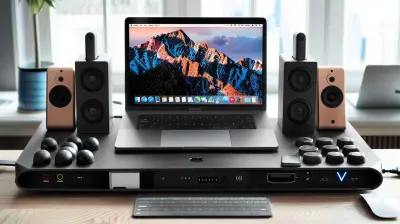
all images in this post were generated using AI tools
Category:
Computer PeripheralsAuthor:

Ugo Coleman